बंटवारा आवंटन — पूरा व्यावहारिक प्रशिक्षण

Bantwara Allocation — Full Training

दिनांक: 2026-10-13 · अनुमानित समय: 7 मिनट · पाठ 6

यह सुविधा क्या है

बंटवारा आवंटन में आप संपत्ति वॉल्ट की पैतृक भूमि को वंशावली के कानूनी वारिसों में बाँटते हैं। हर वारिस का कानूनी हिस्सा (हक) और उसके पास असल में दर्ज भूमि, यानी दखल, का मिलान अपने-आप होता है।

उदाहरण: दादाजी के नाम 100 डिसमिल का खतियान है और परिवार में तीन शाखाएँ हैं। यह सुविधा हर शाखा और हर जीवित वारिस का हिस्सा निकालती है। फिर दिखाती है कि किसे किस खेसरे में कितना रकबा और कौन-सी चौहद्दी मिली।

स्क्रीन के ऊपर की पट्टी बताती है कि बंटवारा पूरा है या नहीं। "बंटवारा अपूर्ण" का अर्थ है कि किसी का दखल उसके हक से कम या ज़्यादा है।
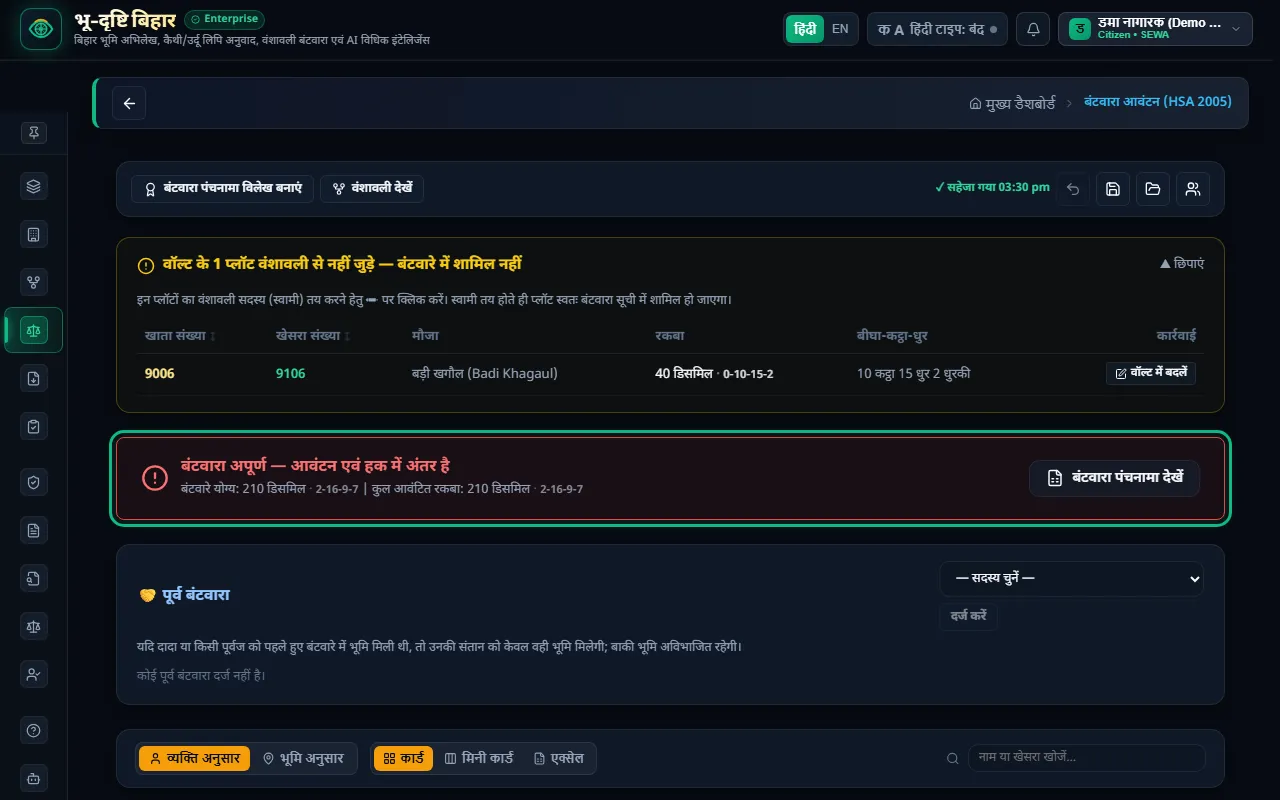
बंटवारा आवंटन स्क्रीन — ऊपर की पट्टी बताती है कि बंटवारा पूरा है या नहीं


शुरू करने से पहले

  1. सभी पैतृक प्लॉट संपत्ति एवं दस्तावेज़ वॉल्ट में दर्ज हों।
  2. परिवार की वंशावली तैयार हो, और हर प्लॉट वंशावली के किसी सदस्य से जुड़ा हो।

जो प्लॉट किसी सदस्य से नहीं जुड़े, वे ऊपर पीले बॉक्स "वॉल्ट के प्लॉट वंशावली से नहीं जुड़े" में दिखते हैं। "वॉल्ट में बदलें" दबाकर उनका स्वामी चुनें। स्वामी तय होते ही प्लॉट बंटवारे में आ जाता है।


दो तरह से देखें: व्यक्ति अनुसार और भूमि अनुसार

  • व्यक्ति अनुसार: हर वारिस का एक कार्ड। उसमें हिस्सा (हक), दखल, बेचा और अंतर दिखते हैं। नाम के आगे "कम" या लाल रंग में "अधिक हिस्सा" लिखा हो, तो उस सदस्य की भूमि ठीक करनी है।
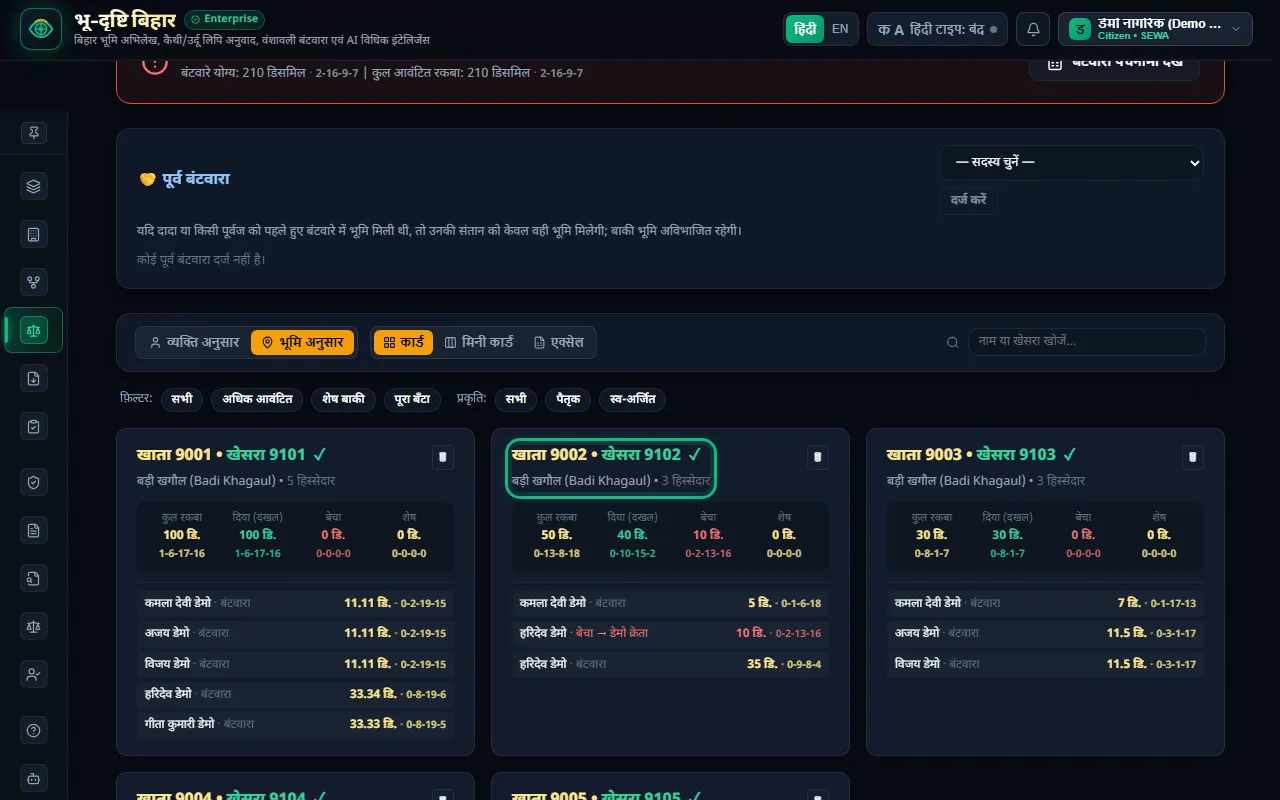
  • भूमि अनुसार: हर प्लॉट का एक कार्ड, जिसमें उस प्लॉट के सभी हिस्सेदार दिखते हैं: किसे कितना मिला, कितना बेचा गया और कितना शेष है।

"कार्ड", "मिनी कार्ड" और "एक्सेल" से दिखावट बदलें। फ़िल्टर से केवल वे सदस्य या प्लॉट देखें जिन पर काम बाकी है।
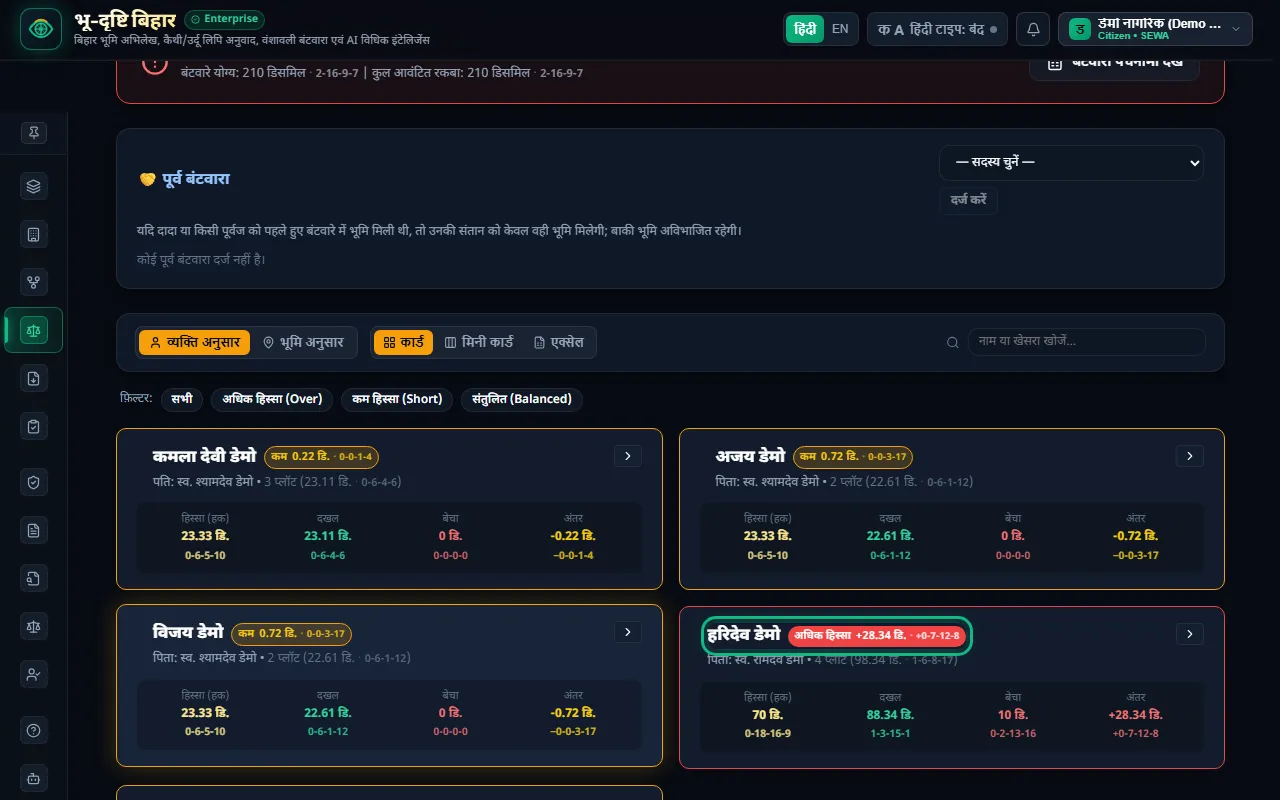
व्यक्ति अनुसार — हर वारिस का एक कार्ड; "अधिक हिस्सा" वाला सदस्य लाल दिखता है

भूमि अनुसार — हर प्लॉट का एक कार्ड, बेची गई भूमि लाल रंग में


चरण-दर-चरण

1. एक प्लॉट को हिस्से अनुसार बाँटें

  1. "भूमि अनुसार" चुनें और प्लॉट के कार्ड पर क्लिक करें। वॉल्ट संपादक का "६. हिस्सेदार" टैब खुलेगा।
  2. "हिस्से अनुसार बांटें" दबाएँ। प्लॉट का बचा रकबा जीवित वारिसों में उनके कानूनी हिस्से के अनुपात में बँट जाता है। हर पंक्ति में वारिस का नाम आता है।
  3. रकबा और चौहद्दी जाँचकर "अद्यतित करें" दबाएँ।
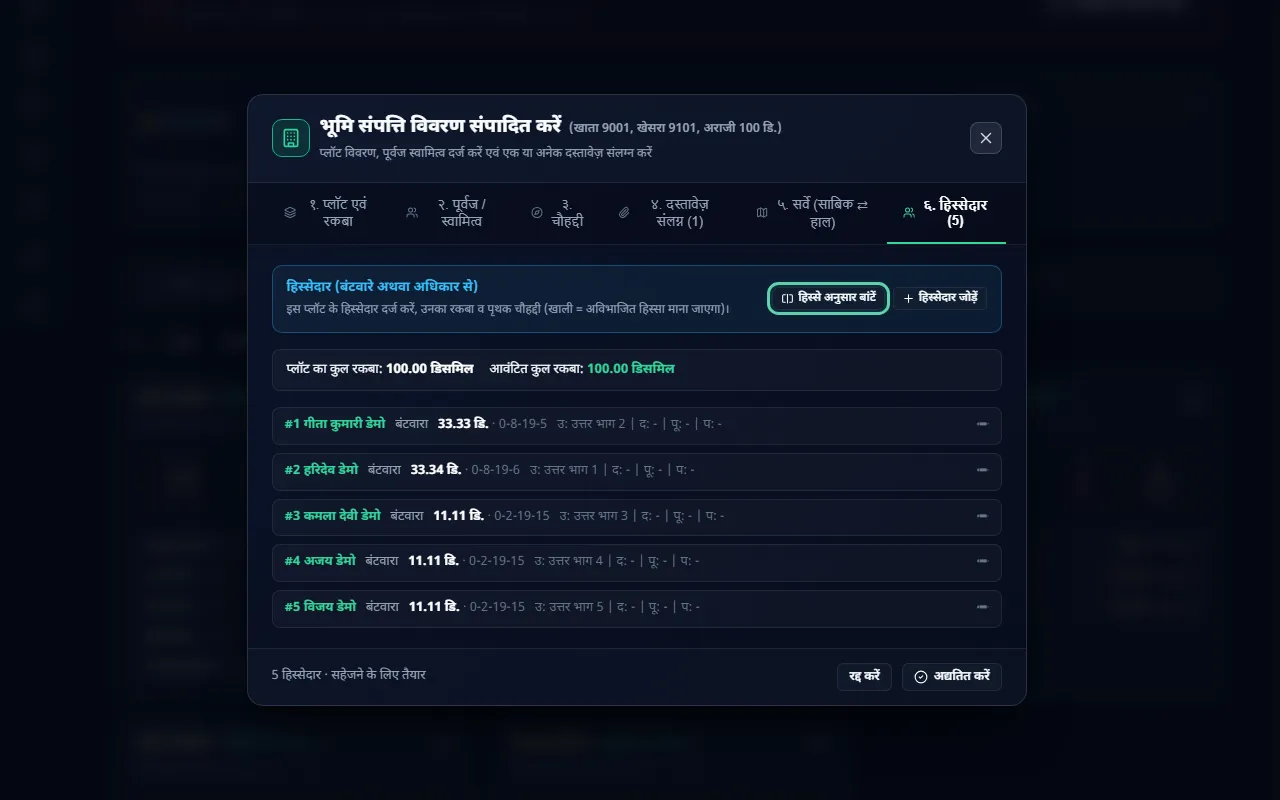
हिस्सेदार टैब — "हिस्से अनुसार बांटें" बटन

यह बटन कितनी भी बार दबाएँ, नतीजा वही रहेगा और कुल रकबा प्लॉट से ज़्यादा कभी नहीं होगा। बेची गई भूमि, खरीदी गई भूमि और पूर्व बंटवारा जैसे के तैसे रहते हैं। किसी पूर्वज (जैसे दादा) की पुरानी पंक्ति अपने-आप "पूर्व बंटवारा" बन जाती है, ताकि वही भूमि दोबारा न गिनी जाए।

2. एक सदस्य की पूरी भूमि एक जगह (सदस्य की भूमि)

"व्यक्ति अनुसार" में किसी सदस्य के कार्ड पर क्लिक करें। सदस्य की भूमि स्क्रीन खुलती है, जहाँ उस सदस्य के सभी प्लॉट एक सूची में होते हैं। हर प्लॉट केवल एक बार दिखता है।

  • + पैतृक भूमि जोड़ें: ऊपर की सूची से प्लॉट चुनें। उतना ही रकबा भरा जाता है जितना उस प्लॉट में अभी बाकी है।
  • ⚖ हिस्से अनुसार भरें: इस सदस्य का कानूनी हिस्सा उसके प्लॉटों में अपने-आप भर जाता है।
  • स्व-अर्जित भूमि जोड़ें: सदस्य की अपनी खरीदी भूमि दर्ज करें। यह बंटवारे में नहीं जाती।
  • अंत में "बदलाव सहेजें" दबाएँ। सभी प्लॉट एक साथ सहेजे जाते हैं: या तो सब, या कोई नहीं। बिना सहेजे स्क्रीन छोड़ने पर ऐप पूछता है।
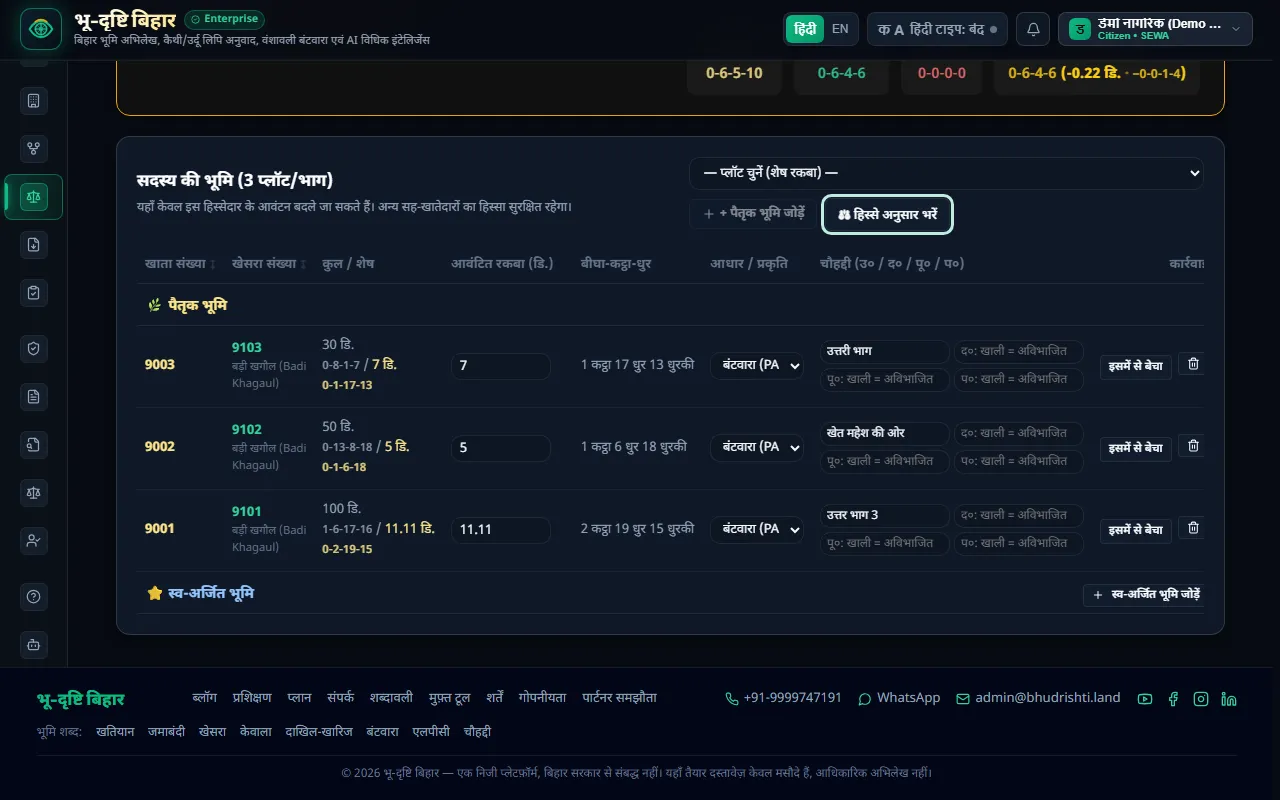
सदस्य की भूमि — एक सदस्य के सभी प्लॉट, "हिस्से अनुसार भरें" बटन

3. बेची गई भूमि दर्ज करें

किसी सदस्य ने अपने हिस्से में से भूमि बेची हो, तो सदस्य की भूमि में उस प्लॉट की पंक्ति पर "इसमें से बेचा" दबाएँ।

  • बाहरी क्रेता: क्रेता का नाम, केवाला संख्या और रजिस्ट्री तिथि भरें।
  • परिवार का सदस्य: "परिवार:" वाली सूची से सदस्य चुनें। यह भूमि उस सदस्य के नाम उसकी स्व-अर्जित भूमि बनकर जुड़ जाती है।

बेचा गया रकबा बेचने वाले के दखल से अपने-आप घट जाता है, और बाकी भूमि उसी के पास रहती है। प्लॉट के हिस्सेदार टैब में बिक्री लाल रंग में "बेचा → क्रेता" दिखती है।
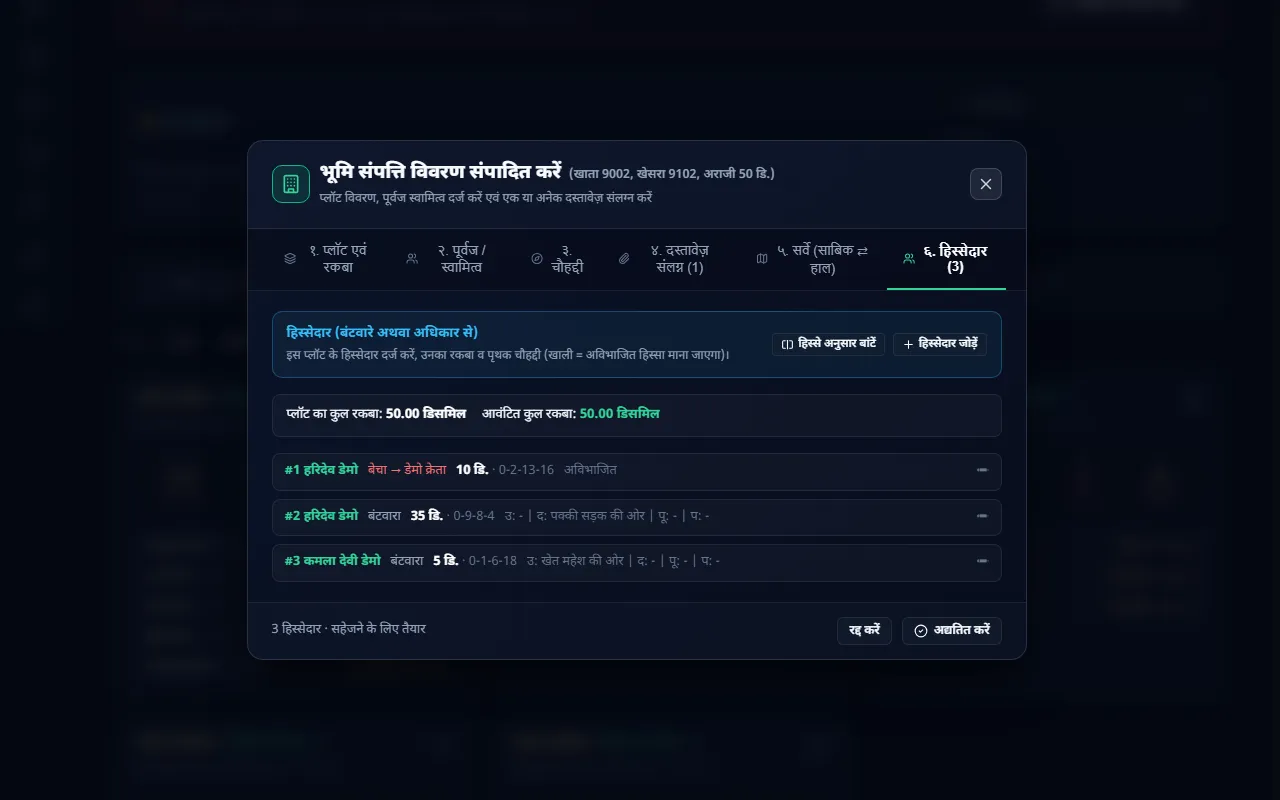
हिस्सेदार टैब — बेची गई भूमि "बेचा → डेमो क्रेता"

4. पूर्व बंटवारा दर्ज करें

अगर दादा या किसी पूर्वज को पहले हुए बंटवारे में भूमि मिली थी, तो उनकी संतान को केवल वही भूमि मिलेगी। बाकी भूमि अविभाजित रहती है।

  1. "🤝 पूर्व बंटवारा" बॉक्स में "— सदस्य चुनें —" से सदस्य चुनें और "दर्ज करें" दबाएँ।
  2. प्लॉट और रकबा भरें, या "हिस्से अनुसार भरें (कानून अनुसार)" दबाएँ। एक ही सदस्य के लिए "और प्लॉट जोड़ें" से कई प्लॉट जोड़ सकते हैं।
  3. "सहेजें" दबाएँ।

सूची में हर सदस्य की एक पंक्ति होती है। उसके सभी प्लॉट उसी पंक्ति में होते हैं और साथ में कुल रकबा दिखता है। "बदलें" से उस सदस्य के सभी प्लॉट एक साथ खुलते हैं। जब किसी पूर्वज की भूमि पूरी तरह उसके वंशजों में आ चुकी हो, तो ऐप उसे अपने-आप पूर्व बंटवारा मान लेता है।
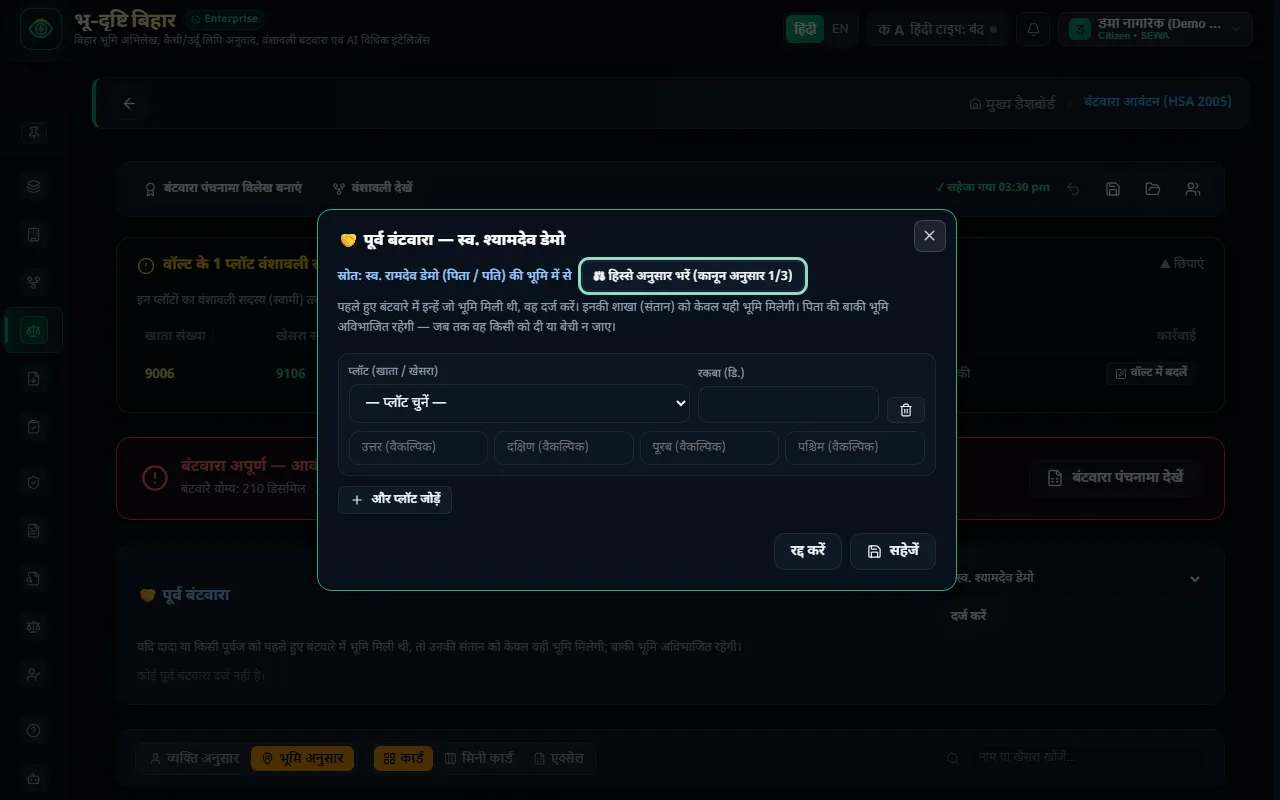
पूर्व बंटवारा — सदस्य चुनकर प्लॉट और रकबा दर्ज करें

5. पंचनामा बनाएँ

परिवार की सहमति बनने के बाद ऊपर "बंटवारा पंचनामा विलेख बनाएं" दबाकर पंचनामा दस्तावेज़ तैयार करें।


आम गलतियाँ और समाधान

  • समस्या: वॉल्ट में 15 प्लॉट हैं, पर बंटवारे में कुछ ही दिख रहे हैं।

    • समाधान: केवल वंशावली से जुड़े प्लॉट बंटवारे में आते हैं। पीले बॉक्स "वॉल्ट के प्लॉट वंशावली से नहीं जुड़े" में "वॉल्ट में बदलें" दबाकर स्वामी चुनें।
  • समस्या: किसी सदस्य के नाम के आगे लाल रंग में "अधिक हिस्सा" लिखा है।

    • समाधान: उस सदस्य को उसके हक से ज़्यादा रकबा मिला है। उसके कार्ड पर क्लिक करके सदस्य की भूमि खोलें और रकबा घटाएँ, या "⚖ हिस्से अनुसार भरें" दबाएँ।
  • समस्या: "हिस्से अनुसार बांटें" बार-बार दबाने से रकबा दोहरा तो नहीं होगा?

    • समाधान: नहीं। हर बार प्लॉट का बंटवारा नए सिरे से बनता है, नतीजा वही रहता है, और कुल रकबा प्लॉट से ज़्यादा नहीं होता।
  • समस्या: एक ही व्यक्ति दो बार दिख रहा है।

    • समाधान: अब हर सूची में एक व्यक्ति की एक ही पंक्ति होती है: व्यक्ति अनुसार, सदस्य की भूमि, और पूर्व बंटवारा में भी। उसके कई प्लॉट उसी पंक्ति में दिखते हैं।
  • समस्या: क्या 🗑 दबाने से मेरा प्लॉट हट जाएगा?

    • समाधान: नहीं। बंटवारा स्क्रीन पर 🗑 दबाने से केवल उस प्लॉट का सदस्यों में किया बंटवारा हटता है। प्लॉट केवल संपत्ति वॉल्ट से हटाया जा सकता है। वहाँ हटाने से पहले ऐप पूछता है, और हटाया गया प्लॉट वापस नहीं आता।

ध्यान रखें

  • प्लॉट रकबे की सीमा: हिस्सेदारों का कुल रकबा प्लॉट से ज़्यादा हो, तो ऐप सहेजने नहीं देता और अतिरिक्त रकबा स्क्रीन पर दिखाता है।
  • जीवित वारिसों तक बंटवारा: बंटवारा हर शाखा के पहले जीवित व्यक्ति तक ही जाता है। जीवित पिता की संतानों का हिस्सा केवल "भविष्य हेतु" दिखता है।
  • कानूनी आधार: यह प्रणाली हिंदू उत्तराधिकार अधिनियम (HSA) 2005 पर आधारित है, जिसमें बेटों और बेटियों को पैतृक संपत्ति में बराबर अधिकार है।
  • निजी सहमति: भू-दृष्टि का बंटवारा विवरण पारिवारिक सहमति के लिए है। यह किसी न्यायालय का आदेश नहीं है।

अगला पाठ

अगले पाठ में सीखें कि तैयार बंटवारा परिवार के दूसरे सदस्यों के साथ मोबाइल पर सुरक्षित कैसे साझा करें: **पाठ 7: परिवार के साथ साझा करें (Family Group)**।


भू-दृष्टि एक निजी सेवा है — सरकारी पोर्टल नहीं।

Bantwara Allocation — Full Training — English

What this feature is

Bantwara Allocation is where you divide the ancestral land in your Property Vault among the legal heirs in your family tree (Vanshavali). It automatically compares each heir's legal share (हक) with the land actually recorded in their name, their possession (दखल).

Example: your grandfather has a khatian for 100 decimals, and the family has three branches. This feature works out the share of every branch and every living heir. It then shows who got how much area (rakba) in which khesra, and with which boundaries (chauhaddi).

The bar at the top tells you whether the partition is complete. "बंटवारा अपूर्ण" (partition incomplete) means someone holds less or more than their share.

The Bantwara screen — the top bar shows whether the partition is complete


Before you start

  1. All ancestral plots are in the Property & Document Vault.
  2. Your family Vanshavali is ready, and every plot is linked to a member of the tree.

Plots not linked to any member appear in the yellow box at the top, "वॉल्ट के प्लॉट वंशावली से नहीं जुड़े" (vault plots not linked to the family tree). Press "वॉल्ट में बदलें" (edit in vault) and choose the owner. Once an owner is set, the plot joins the partition.


Two ways to look: by person and by land

  • व्यक्ति अनुसार (by person): one card per heir, showing their share (हक), possession (दखल), land sold (बेचा) and the difference (अंतर). If "कम" (short) or a red "अधिक हिस्सा" (over-share) appears next to a name, that member's land needs fixing.
  • भूमि अनुसार (by land): one card per plot, listing all its holders: who got how much, how much was sold, and how much is left.

Use "कार्ड", "मिनी कार्ड" and "एक्सेल" to change the layout. Use the filters to see only the members or plots that still need work.

By person — one card per heir; a member with an over-share shows in red

By land — one card per plot, sold land in red


Step by step

1. Split a plot by share

  1. Choose "भूमि अनुसार" (by land) and click a plot's card. The vault editor opens on the "६. हिस्सेदार" (shareholders) tab.
  2. Press "हिस्से अनुसार बांटें" (split by share). The plot's remaining area is divided among the living heirs in proportion to their legal shares. Every row carries the heir's name.
  3. Check the area and boundaries, then press "अद्यतित करें" (update).

Shareholders tab — the "हिस्से अनुसार बांटें" button

Press this button as often as you like: the result stays the same, and the total never exceeds the plot. Land sold, land bought and earlier partitions stay as they are. An old row of an ancestor (for example the grandfather) automatically becomes an "earlier partition" (पूर्व बंटवारा), so the same land is not counted twice.

2. One member's whole land in one place (सदस्य की भूमि)

In "व्यक्ति अनुसार", click a member's card. The member land screen (सदस्य की भूमि) opens with all of that member's plots in one list. Each plot appears only once.

  • + पैतृक भूमि जोड़ें (add ancestral land): pick a plot from the list at the top. The area filled in is whatever is still left on that plot.
  • ⚖ हिस्से अनुसार भरें (fill by share): fills this member's legal share across their plots automatically.
  • स्व-अर्जित भूमि जोड़ें (add self-acquired land): record land the member bought themselves. It does not go into the partition.
  • Finally press "बदलाव सहेजें" (save changes). All plots are saved together: either all of them or none. If you leave without saving, the app asks first.

Member land — all of one member's plots, with the "हिस्से अनुसार भरें" button

3. Record land that was sold

If a member sold part of their share, open सदस्य की भूमि and press "इसमें से बेचा" (sold part of this) on that plot's row.

  • Outside buyer (बाहरी क्रेता): fill in the buyer's name, deed (kewala) number and registry date.
  • Family member: pick the member from the "परिवार:" (family) list. The land is added in that member's name as their self-acquired land.

The sold area is subtracted from the seller's possession automatically, and the rest stays with them. On the plot's shareholders tab, a sale shows in red as "बेचा → buyer".

Shareholders tab — land sold, "बेचा → डेमो क्रेता"

4. Record an earlier partition (पूर्व बंटवारा)

If the grandfather or another ancestor received land in an earlier partition, his descendants get only that land. The rest stays undivided.

  1. In the "🤝 पूर्व बंटवारा" box, pick a member from "— सदस्य चुनें —" and press "दर्ज करें" (record).
  2. Enter the plot and area, or press "हिस्से अनुसार भरें (कानून अनुसार)" (fill by legal share). Use "और प्लॉट जोड़ें" (add another plot) to add several plots for the same member.
  3. Press "सहेजें" (save).

The list has one row per member, with all their plots in that row and the total area. "बदलें" (edit) opens all of that member's plots together. When an ancestor's land has fully passed down to his descendants, the app treats it as an earlier partition by itself.

Earlier partition — pick a member, then enter plot and area

5. Make the Panchnama

Once the family agrees, press "बंटवारा पंचनामा विलेख बनाएं" (make the partition Panchnama deed) at the top to prepare the Panchnama document.


Common mistakes and fixes

  • Problem: the vault has 15 plots, but only a few appear in the partition.

    • Fix: only plots linked to the family tree join the partition. In the yellow box "वॉल्ट के प्लॉट वंशावली से नहीं जुड़े", press "वॉल्ट में बदलें" and choose the owner.
  • Problem: a red "अधिक हिस्सा" (over-share) appears next to a member's name.

    • Fix: that member has more area than their legal share. Click their card to open सदस्य की भूमि and reduce the area, or press "⚖ हिस्से अनुसार भरें".
  • Problem: will pressing "हिस्से अनुसार बांटें" again and again double the area?

    • Fix: no. Each time, the plot's split is rebuilt from scratch, the result stays the same, and the total never exceeds the plot.
  • Problem: the same person appears twice.

    • Fix: every list now has one row per person: by person, member land, and earlier partition. Their several plots appear inside that one row.
  • Problem: will 🗑 delete my plot?

    • Fix: no. On the Bantwara screen, 🗑 removes only how that plot is divided among members. A plot can only be deleted from the Property Vault. The app asks before deleting there, and a deleted plot cannot be brought back.

Keep in mind

  • Plot area limit: if the holders' total is more than the plot, the app does not save and shows the excess area on screen.
  • Living heirs only: the partition goes down each branch to its first living person. The children of a living father see their share only as a "future share" (भविष्य हेतु).
  • Legal basis: the system follows the Hindu Succession Act (HSA) 2005, under which sons and daughters have equal rights in ancestral property.
  • Private agreement: BhuDrishti's partition details are for the family's agreement. They are not a court order.

Next lesson

In the next lesson, learn how to share the partition safely with other family members on their phones: **Lesson 7: Share with family (Family Group)**.


BhuDrishti is a private service — not a government portal.

भू-दृष्टि बिहार एक निजी सेवा है, सरकारी पोर्टल नहीं। BhuDrishti Bihar is an independent private service, not a government portal.