संपत्ति एवं दस्तावेज़ वॉल्ट — पूरा व्यावहारिक प्रशिक्षण

Property & Document Vault — Full Training

दिनांक: 2026-10-15 · अनुमानित समय: 5 मिनट · पाठ 4

यह सुविधा क्या है

संपत्ति एवं दस्तावेज़ वॉल्ट आपकी भूमि का निजी रजिस्टर है। इसके दो भाग हैं:

एक दस्तावेज़ कई प्लॉटों से जुड़ सकता है, और एक प्लॉट से कई दस्तावेज़। वंशावली, बंटवारा, भूमि सत्यापन और सर्वे प्रपत्र, सब यहीं की जानकारी लेते हैं। इसलिए भू-दृष्टि में सबसे पहला काम है वॉल्ट में अपने प्लॉट दर्ज करना।

उदाहरण: आप गाँव से दूर रहते हैं और दादाजी के नाम के खतियान, पिताजी का केवाला और लगान रसीदें अलग-अलग जगह रखी हैं। वॉल्ट में सब एक जगह रहते हैं, हर कागज़ अपने प्लॉट से जुड़ा रहता है, और ज़रूरत पड़ने पर मोबाइल पर तुरंत मिल जाता है।
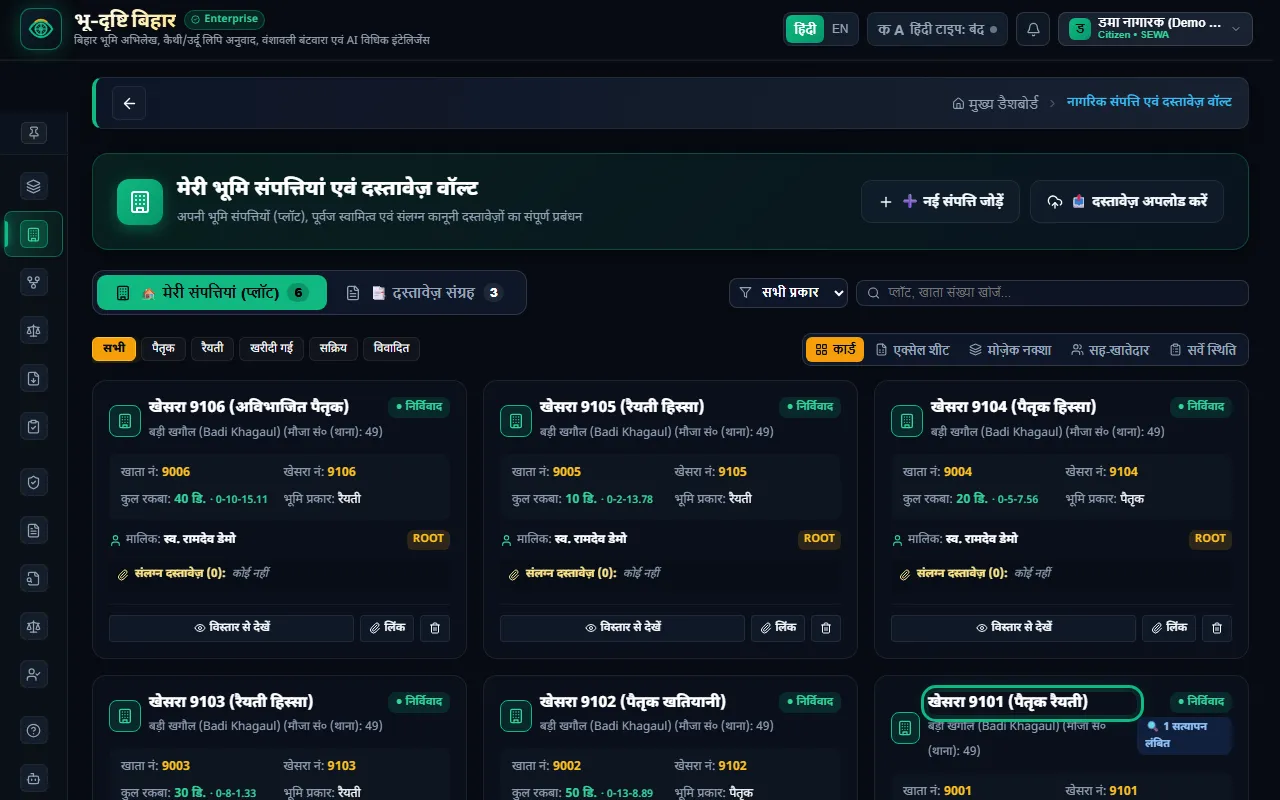
वॉल्ट — हर प्लॉट का एक कार्ड, उसका खाता, खेसरा, रकबा और भूमि प्रकार


शुरू करने से पहले

  1. भू-दृष्टि में लॉगिन करें, और प्रोफ़ाइल में अपना ज़िला, अंचल और मौजा चुन लें।
  2. ज़मीन के कागज़ों की PDF या साफ़ फोटो तैयार रखें: JPG या PNG, हर फ़ाइल 25 MB से छोटी।

चरण-दर-चरण

1. वॉल्ट खोलें और प्लॉट देखें

  1. मुख्य मेनू में "संपत्ति एवं दस्तावेज़ वॉल्ट" खोलें।
  2. "मेरी संपत्तियां (प्लॉट)" में हर प्लॉट का एक कार्ड दिखता है। इसमें खाता, खेसरा, कुल रकबा (डिसमिल और बीघा-कट्ठा-धुर), भूमि प्रकार, मालिक और संलग्न दस्तावेज़ होते हैं।
  3. ऊपर के बटनों से छाँटें: "पैतृक", "रैयती", "खरीदी गई", "सक्रिय", "विवादित"। खोज बॉक्स में खाता या खेसरा लिखकर भी ढूँढ सकते हैं।

2. नया प्लॉट जोड़ें

  1. "➕ नई संपत्ति जोड़ें" दबाएँ।
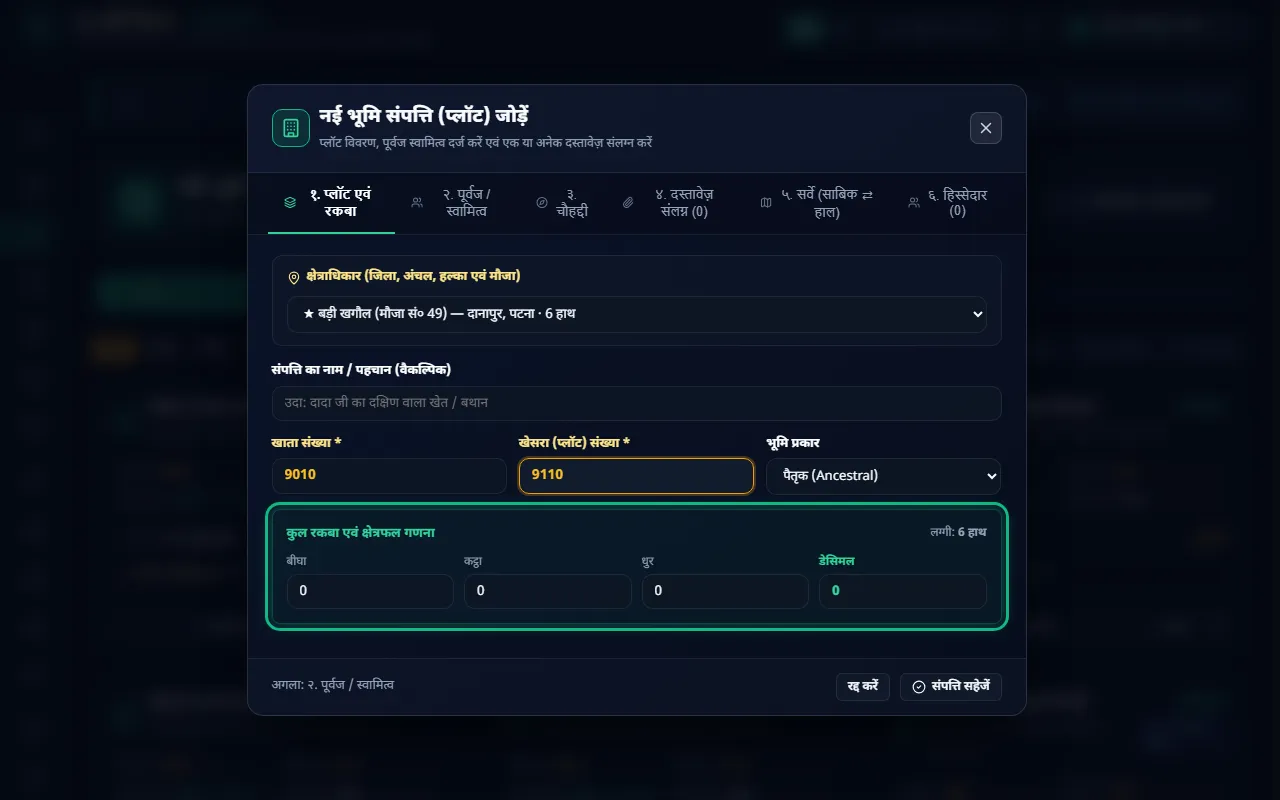
  2. "१. प्लॉट एवं रकबा" टैब में क्षेत्राधिकार (मौजा), खाता संख्या, खेसरा संख्या और भूमि प्रकार भरें।
  3. रकबा बीघा-कट्ठा-धुर में भरें या डेसिमल में। दूसरा हिस्सा आपके मौजा की लग्गी से अपने-आप भर जाता है।
  4. बाकी टैब भी भरें:
    • २. पूर्वज / स्वामित्व: रैयत का नाम, और वंशावली का कौन-सा सदस्य इसका स्वामी है
    • ३. चौहद्दी: उत्तर, दक्षिण, पूरब, पश्चिम
    • ४. दस्तावेज़ संलग्न: इस प्लॉट के कागज़
    • ५. सर्वे (साबिक ⇄ हाल): पुराना और नया खाता-खेसरा
    • ६. हिस्सेदार: किस सदस्य के पास कितना रकबा
  5. "संपत्ति सहेजें" दबाएँ।

नया प्लॉट — खाता, खेसरा और रकबा; बीघा-कट्ठा-धुर और डेसिमल आपस में बदलते हैं

3. प्लॉटों को अलग तरह से देखें

दाईं ओर के बटनों से दिखावट बदलें:

  • कार्ड: हर प्लॉट का पूरा विवरण
  • एक्सेल शीट: तालिका, जिसे डाउनलोड भी किया जा सकता है
  • मोज़ेक नक्शा: मौजा के अनुसार प्लॉटों की टाइलें; टाइल का आकार रकबे के अनुपात में
  • सह-खातेदार: एक प्लॉट के कई हिस्सेदार
  • सर्वे स्थिति: विशेष सर्वेक्षण में प्लॉट कहाँ तक पहुँचा
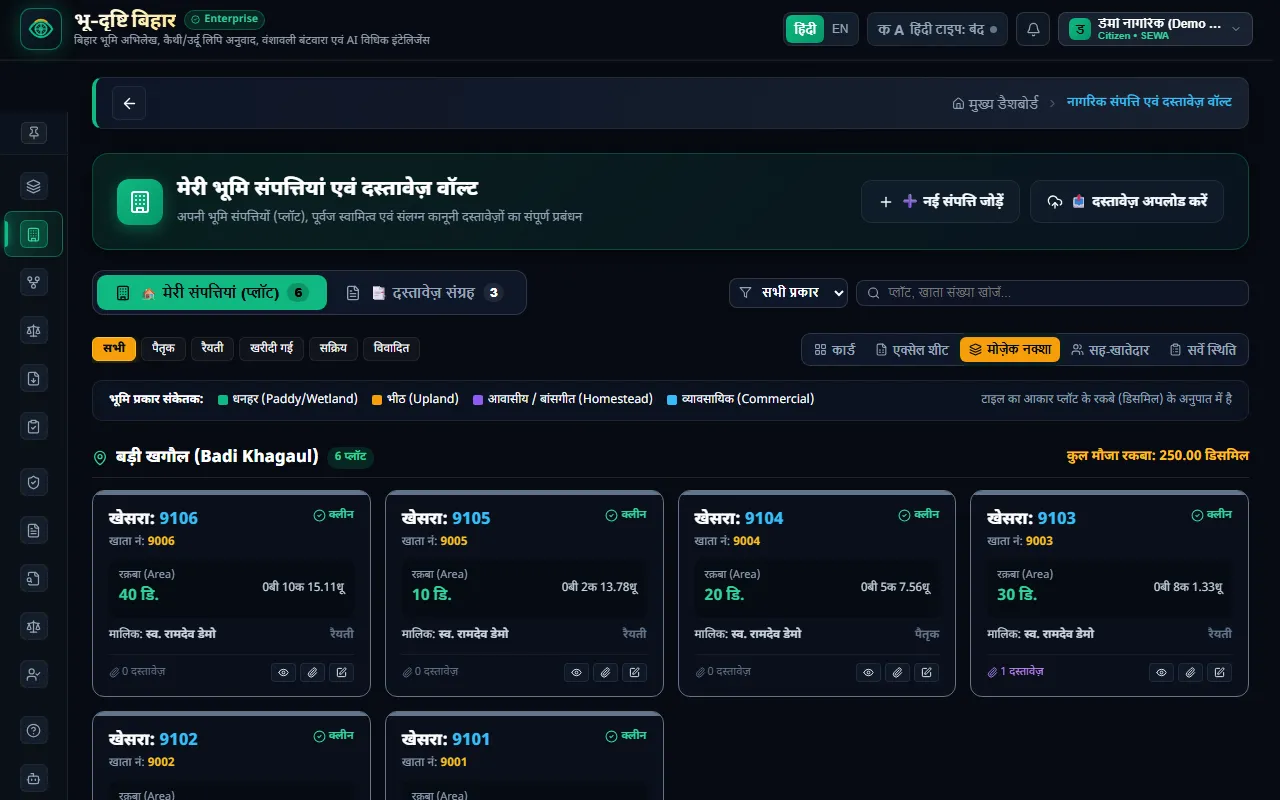
मोज़ेक नक्शा — मौजा के सभी प्लॉट एक नज़र में

4. दस्तावेज़ अपलोड करें

  1. "📤 दस्तावेज़ अपलोड करें" दबाएँ।
  2. दस्तावेज़ का क्षेत्राधिकार (मौजा) और दस्तावेज़ का प्रकार चुनें, जैसे खतियान या केवाला / बैनामा।
  3. "खतियान / केवाला की PDF या फोटो चुनें" पर क्लिक करके फ़ाइल चुनें।
  4. "विश्लेषण एवं निष्कर्षण करें" दबाएँ। AI कागज़ से खाता, खेसरा, रकबा और नाम पढ़ता है।
  5. पढ़ी गई जानकारी जाँचें, गलत हो तो सुधारें, फिर प्लॉट के रूप में सहेजें।
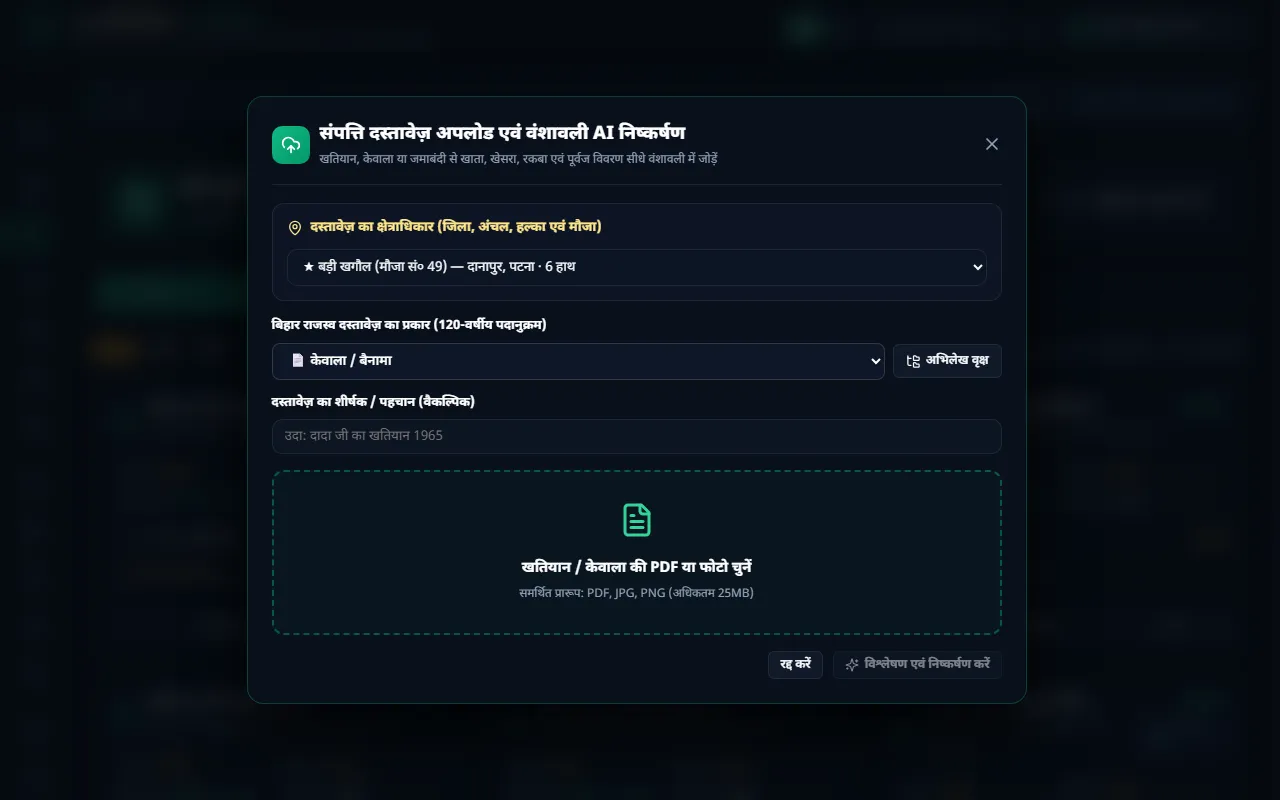
दस्तावेज़ अपलोड — फ़ाइल चुनें, AI खाता-खेसरा पढ़ेगा

5. दस्तावेज़ संग्रह

"दस्तावेज़ संग्रह" टैब में सभी कागज़ कार्ड के रूप में दिखते हैं। हर कार्ड पर दिखता है कि वह किन प्लॉटों से जुड़ा है ("लिंक्ड संपत्तियां")।

  • "देखें": फ़ाइल खोलें
  • "AI विश्लेषण": कागज़ फिर से पढ़वाएँ
  • डाउनलोड या प्रिंट

किसी प्लॉट से नया कागज़ जोड़ना हो तो प्लॉट के कार्ड पर "लिंक" दबाएँ।
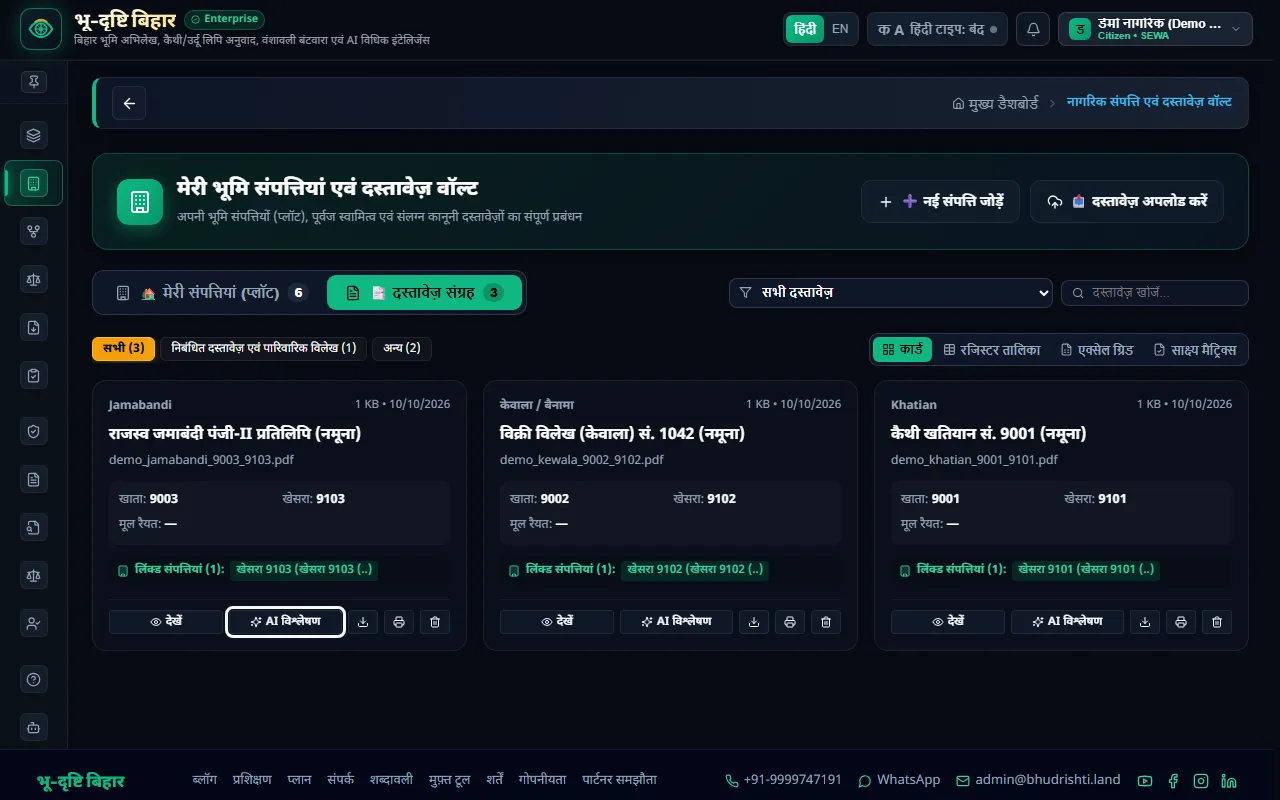
दस्तावेज़ संग्रह — हर कागज़ और उससे जुड़े प्लॉट


आम गलतियाँ और समाधान

  • समस्या: AI ने गलत खेसरा या नाम पढ़ा।

    • समाधान: सहेजने से पहले बॉक्स में सुधार दें। सहेजा गया प्लॉट "विस्तार से देखें" से खोलकर बदला जा सकता है। कैथी या उर्दू में लिखे पुराने कागज़ों के लिए "कैथी / उर्दू OCR" उपयोग करें।
  • समस्या: "डुप्लिकेट" कहकर प्लॉट सहेजा नहीं गया।

    • समाधान: उसी खाता, खेसरा, मौजा और मालिक का प्लॉट पहले से वॉल्ट में है। नया बनाने के बजाय पुराना प्लॉट खोलकर बदलें।
  • समस्या: प्लॉट हटाने पर बंटवारा क्या होगा?

    • समाधान: प्लॉट हटाने से उसके सारे हिस्सेदार और बंटवारा भी हट जाते हैं, और हटाया गया प्लॉट वापस नहीं आता। इसलिए ऐप हटाने से पहले प्लॉट का नाम बताकर पूछता है। केवल बंटवारा हटाना हो तो बंटवारा स्क्रीन पर 🗑 उपयोग करें।
  • समस्या: फ़ाइल अपलोड नहीं हो रही।

    • समाधान: फ़ाइल PDF, JPG या PNG हो और 25 MB से छोटी हो। बड़ी PDF को "1MB PDF टूलकिट" से छोटा करें।

ध्यान रखें

  • आपकी फ़ाइलें निजी हैं: इन्हें केवल आप देख सकते हैं, और वह CSC केंद्र जिसे आपने अपने खाते का प्रबंधन सौंपा है। सहायता अनुरोध भेजने पर भी आपके दस्तावेज़ों की सामग्री साथ नहीं जाती।
  • AI की जाँच ज़रूरी: AI पढ़ने में गलती कर सकता है। सहेजने से पहले हर संख्या मूल कागज़ से मिलाएँ।
  • वॉल्ट ही आधार है: वंशावली, बंटवारा और सर्वे प्रपत्र, सब वॉल्ट के प्लॉटों से बनते हैं। प्लॉट सही होंगे, तो आगे का हर काम सही होगा।

अगला पाठ

अगले पाठ में सीखें कि परिवार की वंशावली कैसे बनाएँ और प्लॉटों को पूर्वजों से कैसे जोड़ें: **पाठ 5: वंशावली**।


भू-दृष्टि एक निजी सेवा है — सरकारी पोर्टल नहीं।

Property & Document Vault — Full Training — English

What this feature is

The Property & Document Vault is your private register of land. It has two parts:

One document can be linked to many plots, and one plot to many documents. The Vanshavali, the partition, land verification and the survey forms all take their information from here. That's why the very first job in BhuDrishti is to enter your plots in the vault.

Example: you live far from the village, and your grandfather's khatian, your father's sale deed and the rent receipts are kept in different places. In the vault they are all in one place, each paper linked to its plot, and you can find them on your phone whenever you need them.

The vault — one card per plot, with its khata, khesra, area and land type


Before you start

  1. Log in to BhuDrishti, and choose your district, anchal and mauza in your profile.
  2. Keep PDFs or clear photos of your land papers ready: JPG or PNG, each file under 25 MB.

Step by step

1. Open the vault and see your plots

  1. Open "संपत्ति एवं दस्तावेज़ वॉल्ट" (Property & Document Vault) from the main menu.
  2. "मेरी संपत्तियां (प्लॉट)" shows one card per plot, with the khata, khesra, total area (in decimals and bigha-kattha-dhur), land type, owner and attached documents.
  3. Filter with the buttons at the top: "पैतृक" (ancestral), "रैयती" (raiyati), "खरीदी गई" (purchased), "सक्रिय" (active), "विवादित" (disputed). You can also type a khata or khesra in the search box.

2. Add a new plot

  1. Press "➕ नई संपत्ति जोड़ें" (add new property).
  2. On the "१. प्लॉट एवं रकबा" (plot and area) tab, fill in the jurisdiction (mauza), khata number, khesra number and land type.
  3. Enter the area in bigha-kattha-dhur or in decimals. The other is filled in automatically using your mauza's laggi (measuring rod).
  4. Fill in the other tabs too:
    • २. पूर्वज / स्वामित्व (ancestor / owner): the raiyat's name, and which family-tree member owns it
    • ३. चौहद्दी (boundaries): north, south, east, west
    • ४. दस्तावेज़ संलग्न (attached documents): this plot's papers
    • ५. सर्वे (साबिक ⇄ हाल) (survey, old ⇄ new): the old and new khata and khesra
    • ६. हिस्सेदार (holders): which member holds how much area
  5. Press "संपत्ति सहेजें" (save property).

New plot — khata, khesra and area; bigha-kattha-dhur and decimals convert both ways

3. View your plots in different ways

Change the layout with the buttons on the right:

  • कार्ड (cards): each plot's full details
  • एक्सेल शीट (Excel sheet): a table you can also download
  • मोज़ेक नक्शा (mosaic map): your plots as tiles by mauza; each tile's size is in proportion to its area
  • सह-खातेदार (co-holders): plots with several holders
  • सर्वे स्थिति (survey status): how far each plot has reached in the special survey

Mosaic map — all plots of a mauza at a glance

4. Upload a document

  1. Press "📤 दस्तावेज़ अपलोड करें" (upload document).
  2. Choose the document's jurisdiction (mauza) and its type, for example khatian or kewala / bainama.
  3. Click "खतियान / केवाला की PDF या फोटो चुनें" (choose a PDF or photo) and pick the file.
  4. Press "विश्लेषण एवं निष्कर्षण करें" (analyse and extract). AI reads the khata, khesra, area and names from the paper.
  5. Check what it read, correct anything wrong, then save it as a plot.

Document upload — choose the file; AI reads khata and khesra

5. The document collection

The "दस्तावेज़ संग्रह" (document collection) tab shows all your papers as cards. Each card shows which plots it is linked to ("लिंक्ड संपत्तियां").

  • "देखें" (view): open the file
  • "AI विश्लेषण" (AI analysis): have the paper read again
  • Download or print

To attach a new paper to a plot, press "लिंक" (link) on the plot's card.

Document collection — each paper and the plots it is linked to


Common mistakes and fixes

  • Problem: the AI read the wrong khesra or name.

    • Fix: correct the box before saving. A saved plot can be opened with "विस्तार से देखें" (view details) and changed. For old papers written in Kaithi or Urdu, use "कैथी / उर्दू OCR".
  • Problem: the plot was not saved, with a "duplicate" message.

    • Fix: a plot with the same khata, khesra, mauza and owner is already in your vault. Open and edit that one instead of making a new one.
  • Problem: what happens to the partition if I delete a plot?

    • Fix: deleting a plot also removes all its holders and its partition, and a deleted plot cannot be brought back. That's why the app names the plot and asks before deleting. To remove only the partition, use 🗑 on the Bantwara screen.
  • Problem: the file won't upload.

    • Fix: the file must be PDF, JPG or PNG and under 25 MB. Shrink a large PDF with the "1MB PDF टूलकिट" (1 MB PDF toolkit).

Keep in mind

  • Your files are private: only you can see them, and a CSC centre you have allowed to manage your account. Even when you send a help request, the contents of your documents are never included.
  • Check the AI: AI can misread. Before saving, compare every number with the original paper.
  • The vault is the foundation: the Vanshavali, the partition and the survey forms are all built from your vault plots. If the plots are right, everything after them will be right.

Next lesson

In the next lesson, learn how to build your family tree (Vanshavali) and link plots to your ancestors: **Lesson 5: Vanshavali**.


BhuDrishti is a private service — not a government portal.

भू-दृष्टि बिहार एक निजी सेवा है, सरकारी पोर्टल नहीं। BhuDrishti Bihar is an independent private service, not a government portal.